Global Settings
The global settings page controls settings which are applied across all pixstor sites participating in hub management.

|
Click the settings button to navigate to the Global Settings screen |
Navigating the Settings page

|
After changing a setting, click the Save button to apply the changes |
|
After changing a setting, click Reset Changes to reset any unsaved changes |
Spaces
Spaces are created at a set directory path on a PixStor file system.
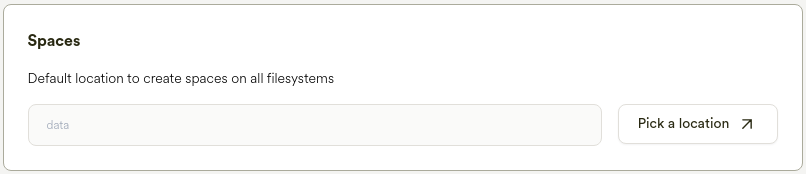
To set the directory path, click the

|
Clicking the |
Choose any file system on any Site
Navigate the file system to a directory where Spaces are to be created
Choose Confirm
All new spaces will be created at the chosen directory location for all filesystems.
Parent directory paths will be automatically created on any Site where the chosen default location does not exist.
Database
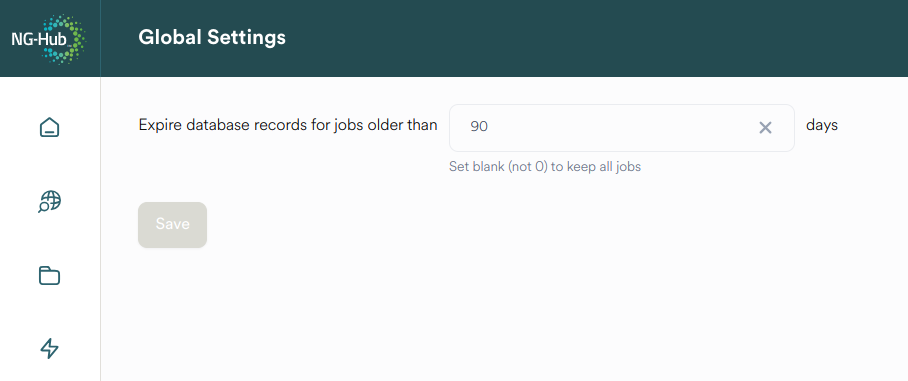
Old job data can be retained in the database for a specific number of days so that the hub database does not fill up the system.
Database expiry can be configured by setting jobs_ttl in Global Settings page in UI.
Clicking the Global Settings button displays a form for updating the jobs_ttl in days.
The Save button will be enabled once the user changes the value in the field.
Job Alerts
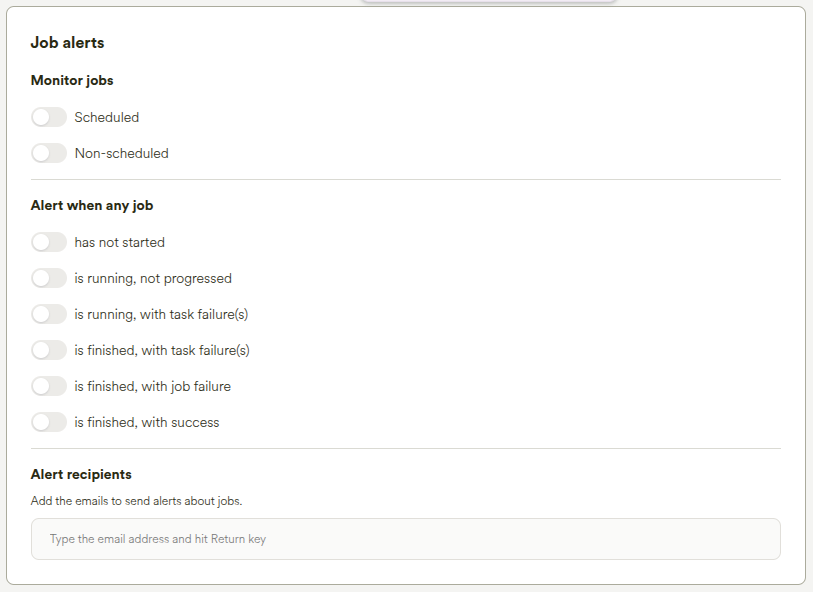
Ngenea Hub allows us to configure alerts for jobs based on their type and state.
Job Types
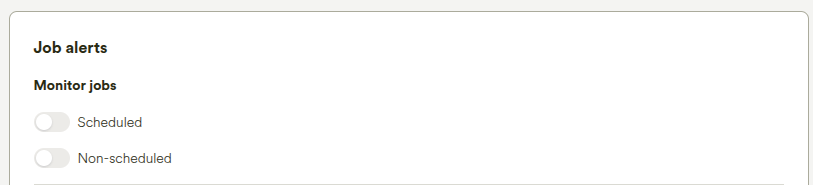
Scheduled - Enables alerts for scheduled jobs. Default is
off.Non-scheduled - Enables alerts for non-scheduled jobs. Default is
off.
Note
At least one of Scheduled or Non-scheduled must be enabled to configure specific alerts. If both are off, all other alert options are disabled.
Alert Conditions
Has not started - The alert is triggered when a job has not started after a configurable threshold. Default threshold is
2 hours.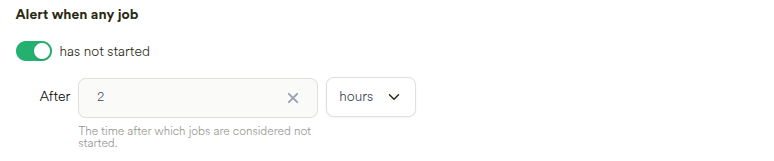
Is running, not progressed - The alert is triggered when a job is running but not progressed after a configurable threshold. Default threshold is
2 hours.
Is running, with task failure(s) - Triggered if one or more tasks fail while the job is running and the job state is
Failing.Is finished, with task failure(s) - Triggered if a finished job has one or more task failures and the job state is
Has Failures.Is finished, with job failure - Triggered if a finished job fails completely and the job state is
FAILURE.Is finished, with success - Triggered if a finished job completes successfully and the job state is
SUCCESS.
Note
Thresholds can be adjusted for not started and not progressed jobs to control when alerts are sent.
Alert Recipients
Alerts can be sent to one or more email addresses. Enter an email in the multi-text box and press Enter to add it to the list. You can add multiple recipients this way.

Timeouts
Hub manages many varied operations, at differing scale, across Sites which can be in different geo-locations.
As such, the time to complete operations may require tuning for the differing scenarios.
Additional timeout settings are available in the Administration Guide. See “Hub Configuration”.
Setting |
Description |
Default |
|---|---|---|
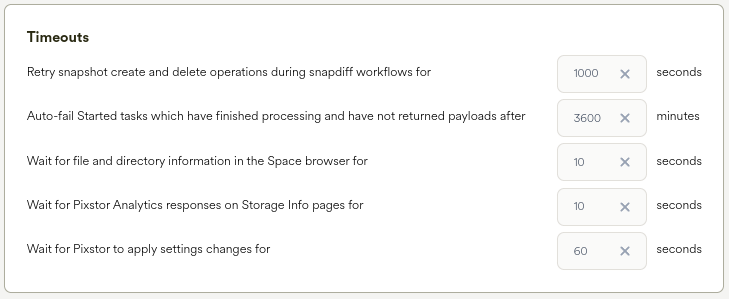
Retry snapshot create and delete operations during snapdiff workflows for |
Where snapshots operations are numerous or blocked by cluster behaviour, continue to retry snapshot creation and deletion within the timeout window |
1000 seconds |
Auto-fail Started tasks which have finished processing and have not returned payloads after |
If a Job’s task has completed, but the results of the task have not been sent back to Hub (perhaps due to network, environmental or payload failure), set the task to state Failure after the timeout window has expired |
3600 minutes |
Wait for file and directory information in the Space browser for |
During browsing of Spaces and similar file browser interfaces do not return disk usage and count information if no such information is received from the Pixstor Analytics after the timeout has expired |
10 seconds |
Wait for Pixstor Analytics responses on Storage Info pages for |
During the browsing of Storage Info for a Site, do not return disk usage and count information if no such information is received from the Pixstor Analytics after the timeout has expired |
10 seconds |
Wait for Pixstor to apply settings changes for |
When applying changes to Sites, wait the specified number of seconds for the Pixstor to respond to the action before failing the Settings task |
60 seconds |
Database Backup
Ngenea Hub provides automated database backup functionality to protect configuration data and, optionally, job history.
Backups can be scheduled and managed directly from the Global Settings page.
Setting |
Description |
Default |
|---|---|---|
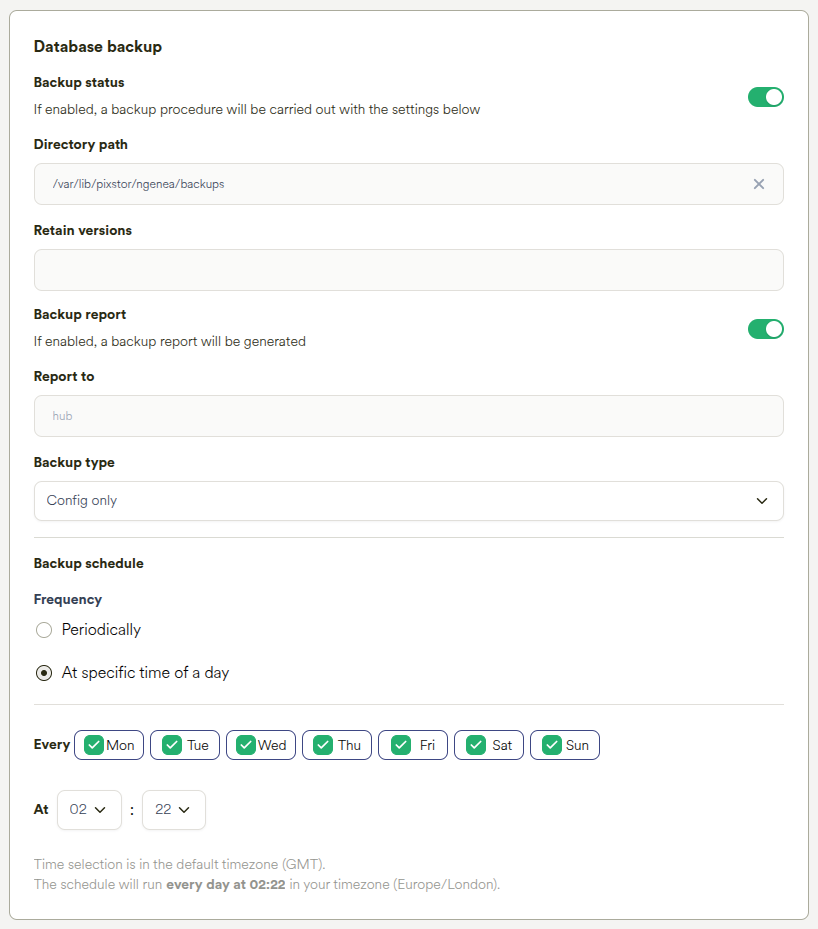
Backup status |
If enabled, a backup procedure will be carried out with the given settings. |
Enabled |
Directory path |
Directory where backup archives are stored. |
/var/lib/pixstor/ngenea/backups |
Retain versions |
Number of backup archives to retain. If not set (None), all backups are kept and pruning does not run. |
None |
Backup report |
If enabled, a backup report will be generated |
Enabled |
Report to |
Destination for backup reports. When set to “hub”, a Job is created in the Hub UI containing backup and prune details. |
hub |
Backup type |
Defines the data included in the backup: ConfigOnly - Static configuration files and configuration-related data
Full - Includes ConfigOnly data plus job history data
|
ConfigOnly |
Frequency |
Defines how often backups are executed (periodically or at a specific time of day). The schedule uses the configured site timezone. |
At specific time of day |
Schedules
On the Schedules page, schedules can be enabled or disabled individually.
The Global Settings page provides the ability to disable all schedules at once.
Clicking the Global Settings button displays a “Schedules” toggle.
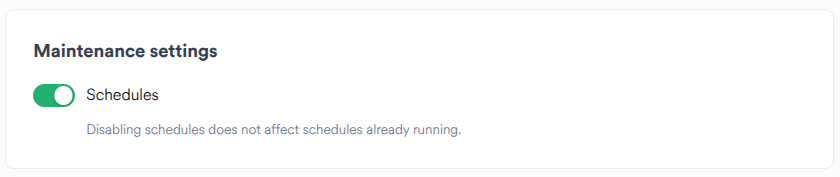
Set the toggle to disabled and click Save to disable all schedules.
No new scheduled jobs will start for as long as Schedules are disabled globally.
Any scheduled jobs which have already started when schedules are disabled will run to completion, but no new jobs for that schedule will start after that.
Set the toggle back to enabled and click Save to re-enable schedules globally.
Any schedules which were disabled individually will remain disabled after Schedules are re-enabled globally.
Search
The Global Settings page provides the ability to switch search settings.
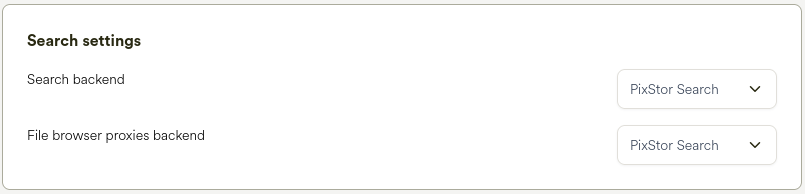
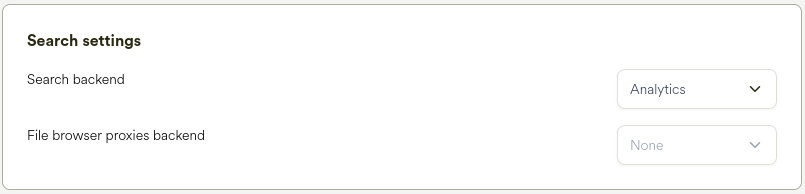
The Search backend dropdown determines which backend service is used for the Hub search feature.
Two options are available: Pixstor Search and Analytics.
Select
Pixstor Searchto perform searches using the Pixstor search service.Select
Analyticsto perform searches using the analytics service.
The File browser proxies backend dropdown determines which backend service is used to fetch proxy images (thumbnails) displayed in the Space browser.
The options available in the File browser proxies backend dropdown depend on the selection made in the Search backend dropdown.
When Pixstor Search is selected as the Search backend
The File browser proxies backend dropdown provides two options:
NoneDisables proxy thumbnail retrieval for the file browser.Pixstor SearchEnables fetching proxy thumbnails from the Pixstor search service.
When Analytics is selected as the Search backend
The File browser proxies backend dropdown only provides the following option:
NoneProxy thumbnails cannot be fetched from the analytics service and are therefore disabled.
These settings allow administrators to choose which backend service is responsible for search functionality and, when supported, for retrieving thumbnails used in the Space browser interface.
For more information about the Hub search feature, see Admin Guide.